How to Integrate Dynamics 365 With Third-Party Apps
Learn how to easily integrate Dynamics 365 with third-party apps, streamline your business processes, and boost efficiency with seamless connections.
Contact Us
Microsoft Dynamics 365 is one of the most adaptable business platforms, combining CRM and ERP capabilities to manage customers, operations, and insights in one place. It's true power lies in how easily it integrates with everyday tools like marketing platforms and e-commerce apps.
As businesses increasingly rely on multiple applications, being able to integrate with Dynamics 365 easily is essential. Without it, data silos, duplication, and sync errors can obstruct operations and decision-making.
In this article, we will outline how to integrate Dynamics 365 with third-party apps, go over some of the best integration techniques, and help you keep those integrations clear and free from error.
Understanding Dynamics 365 Integration
Integration in Dynamics 365 means enabling different applications to exchange and use data efficiently. It ensures that all systems, CRM, ERP, marketing, accounting, and others, work together as one connected ecosystem.
Key Integration Layers
Benefits to integrate Dynamics 365 with third-party apps
Microsoft Dynamics 365 offers flexible integration capabilities that connect CRM and ERP data with almost any third-party app. You can integrate using native Microsoft tools, ready-made connectors, or custom APIs, depending on your business needs and technical setup.
Key Advantages
Integrate Dynamics 365 in 5 Easy Steps
1. Define Your Integration Goals
Before integrating, clarify what you want to achieve. Which departments or processes need data to be synchronized?
Example: A company wants its Sales and Customer Service teams to have the same customer information. Sales enters a new lead in Dynamics 365 Sales, and Customer Service needs access to that data immediately to provide support. The goal is real-time customer data across both teams.
2. Choose the Right Integration Type
Decide whether to use a native integration, a connector-based solution, or custom APIs. Each has pros and cons.
Example:
- Native integration: Power BI built-in connector for real-time dashboards.
- Connector-based: Zapier connects Dynamics 365 with Shopify to automatically sync order data.
- Custom API: A retail chain wants to integrate Dynamics 365 with its proprietary inventory system, so developers create a custom API to push and pull stock levels automatically.
3. Map and Clean Data
Before syncing, ensure all fields match and remove duplicates to prevent errors.
Example: In Dynamics 365, you have a “Customer Email” field. Shopify has “Email Address.” Mapping ensures these two fields sync correctly. You also remove duplicate entries so each customer appears only once across systems.
4. Configure and Test in Sandbox
Set up a test environment before deploying to live data. This helps catch errors without disrupting actual operations.
Example: A company integrates Dynamics 365 with QuickBooks for invoicing. In the sandbox, they test creating a new invoice in Dynamics 365 to see if it appears correctly in QuickBooks. They check amounts, customer info, and payment status before going live.
5. Deploy and Monitor
Once everything is tested, move the integration to the live system and monitor it. Look for errors, syncing delays, or missing data.
Example: After integrating Dynamics 365 with Zoom for meeting scheduling, the company checks that all meetings booked in Dynamics are automatically reflected in Zoom, including participants and meeting notes. Any mismatches are fixed immediately to prevent disruption.
Learn More from Microsoft Docs
For detailed guidance on integrating Dynamics 365 with third-party applications and leveraging built-in connectors, refer to the official Microsoft Dynamics 365 documentation. It covers step-by-step integration instructions, security best practices, and recommended approaches for different modules.
Smoothly Integrate Dynamics 365 With These Top Third-Party Apps
Microsoft provides a range of native and third-party tools for easy and secure integration.
Power BI
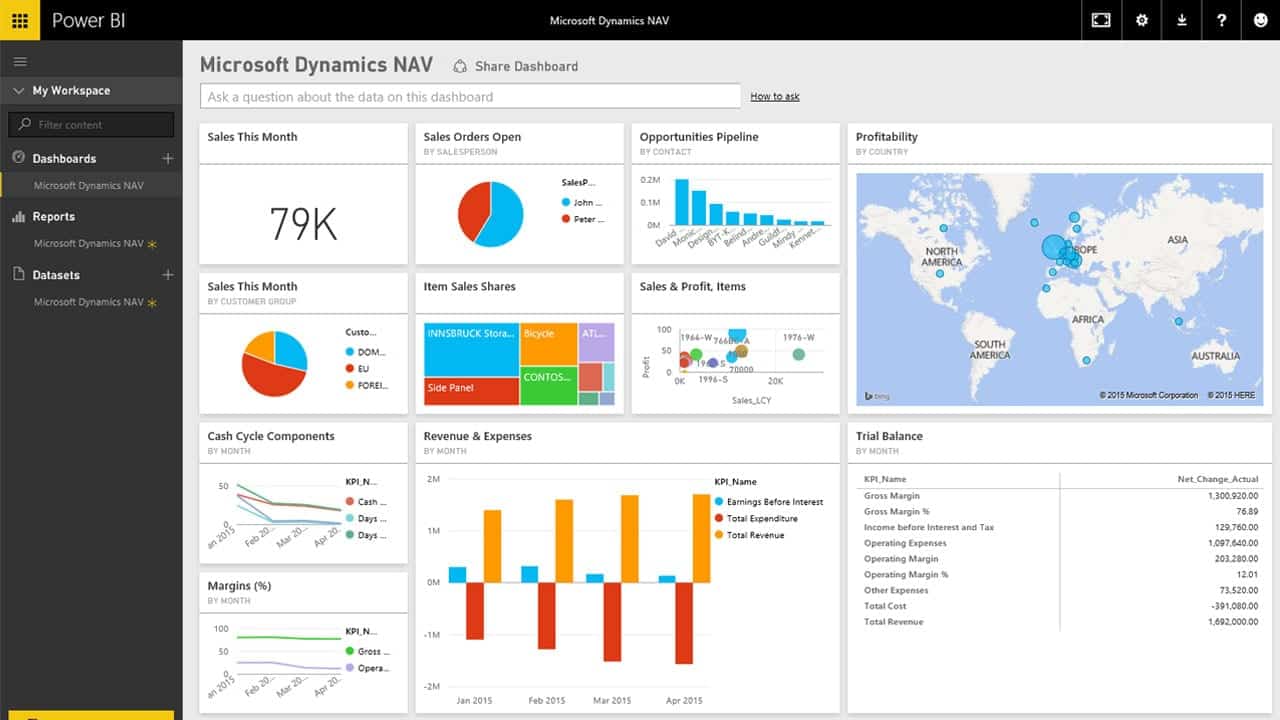
Integrating Power BI with Dynamics 365 helps businesses see their data clearly and meaningfully. Using Dataverse and built-in connectors, Power BI pulls information from modules like Sales, Finance, and Customer Service. The setup is simple and requires no complicated configuration.
Teams can explore trends, track performance, and stay on top of key metrics with interactive dashboards that update automatically. It’s flexible enough to grow with your business and can connect to other data sources. This gives you a complete view of what’s happening across your operations.
It keeps everything secure with role-based access. It also makes it easy for teams to share reports, so everyone stays aligned and can make confident, informed decisions.
Use case: Visualize Dynamics 365 data for real-time reporting and analytics.
Mural
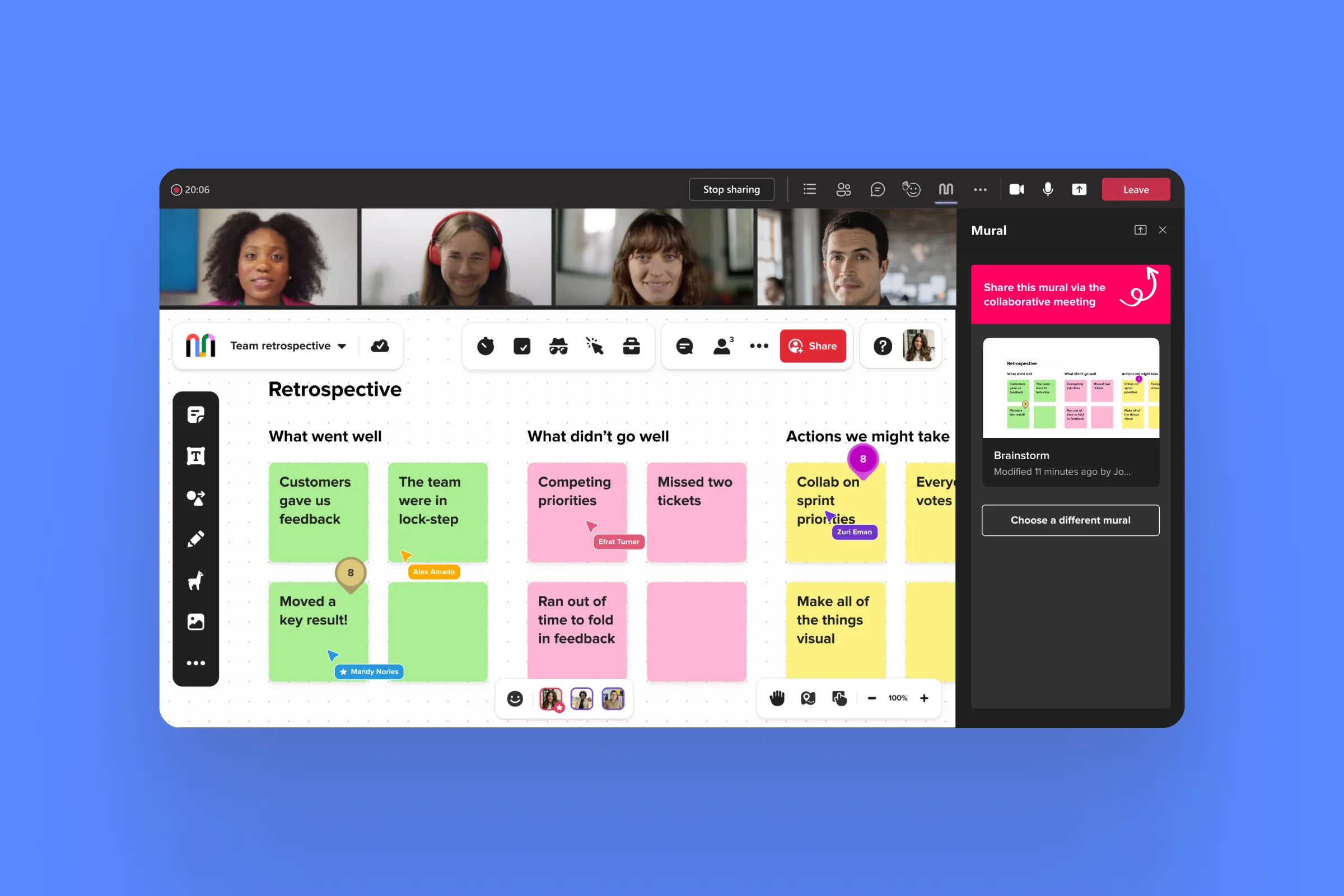
Integrating Mural with Dynamics 365 brings powerful visual collaboration to your projects. Teams can generate, plan, and organize ideas on shared digital whiteboards within the Dynamics environment. The integration makes it simple to capture discussions, align goals, and turn plans into actionable tasks. You don’t have to switch between tools.
It supports real-time collaboration. Multiple team members can contribute at once, which improves clarity and speeds up project execution. It connects across different Dynamics 365 modules. This makes it useful for sales planning, project management, and strategy sessions.
For example, teams can visually map workflows or share updates during sprint reviews. This keeps everyone on the same page. It also keeps your content secure and accessible only to authorized users. Teams can stay creative and aligned while keeping business data protected.
Use Case: Enable visual collaboration and brainstorming within Dynamics 365 projects.
Zoom
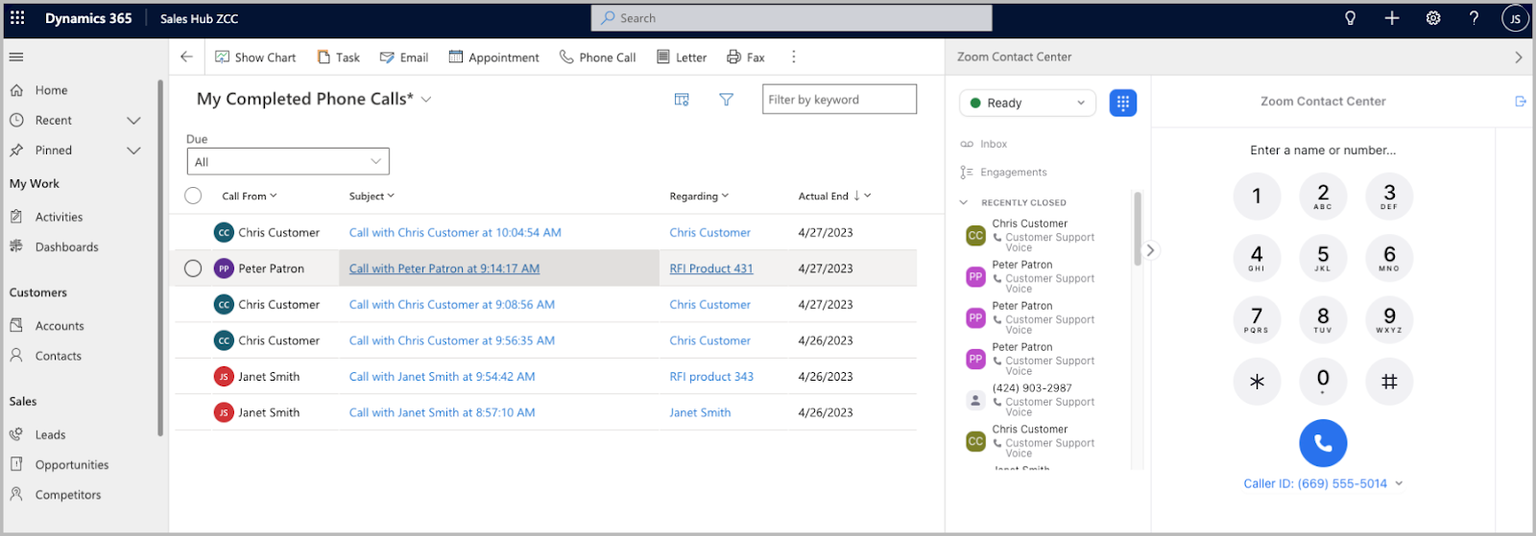
Integrating Zoom with Dynamics 365 makes it easy to manage virtual meetings without leaving your CRM. Users can schedule, join, and track Zoom calls directly from Dynamics records such as leads, contacts, or opportunities. The integration connects through secure APIs, automatically syncing meeting details, recordings, and notes in real time.
It enhances remote collaboration by allowing sales and support teams to interact with customers more efficiently, improving both communication and follow-up. The setup is straightforward and works smoothly across multiple Dynamics 365 modules, including Sales, Customer Service, and Field Service.
Its also scales easily as your organization grows and keeps sensitive data protected with built-in authentication and permissions. This way, teams can focus on meaningful conversations while Dynamics 365 keeps everything organized and up to date.
Use Case: Schedule and manage virtual meetings directly from Dynamics 365.
Trello
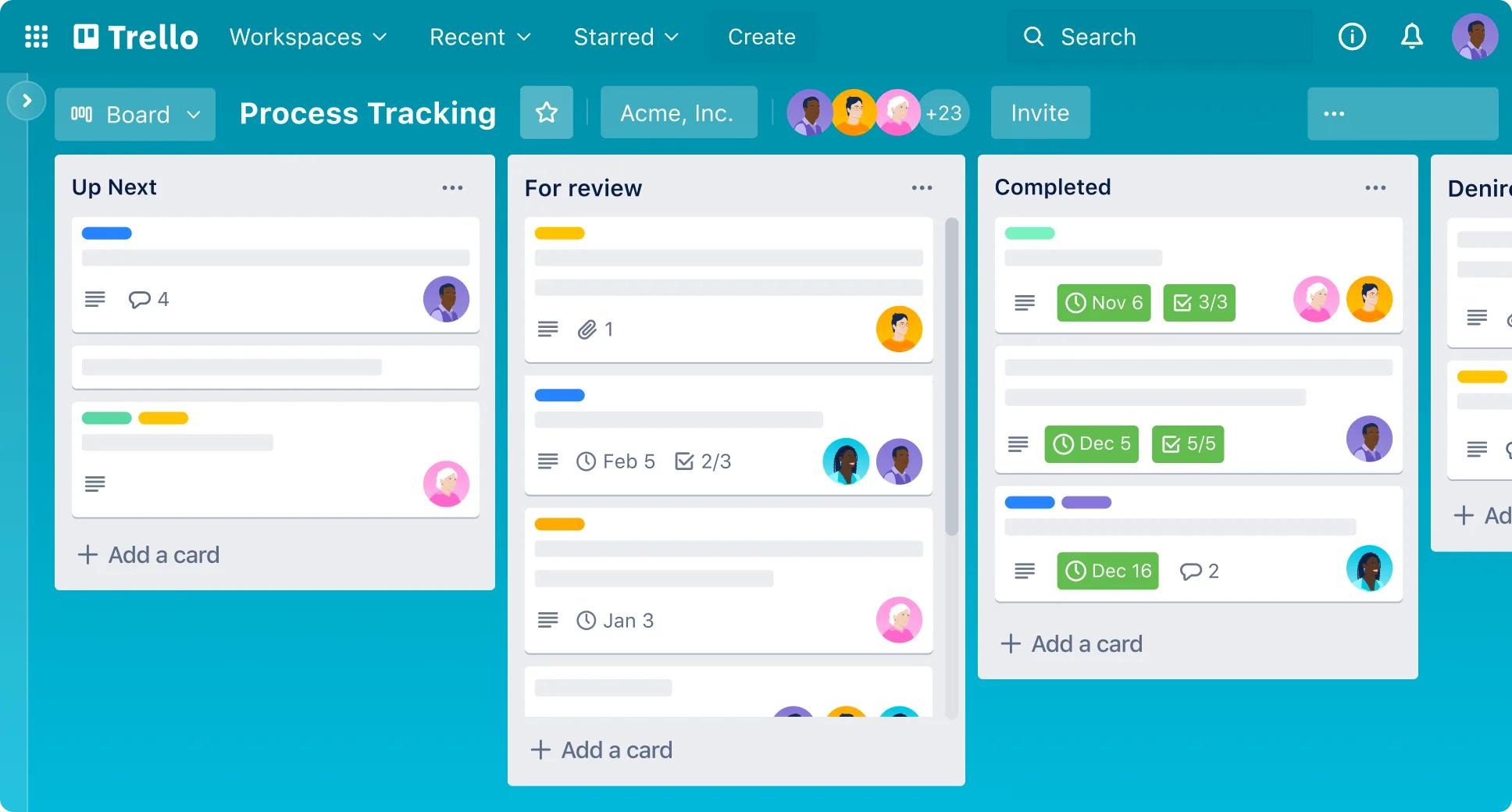
Integrating Trello with Dynamics 365 helps teams manage projects and workflows more efficiently. The connection automatically syncs tasks, deadlines, and progress updates between Trello boards and Dynamics records, reducing manual updates and keeping everyone aligned. It provides real-time visibility into ongoing projects, so managers can track progress and performance without switching platforms.
The integration is flexible and works across multiple Dynamics 365 modules, such as Sales, Marketing, and Project Operations. Teams can easily organize tasks, assign responsibilities, and update project status directly from either system.
It also supports role-based permissions, ensuring data stays secure and accessible only to authorized users. As your business grows, it scales effortlessly to handle more boards, users, and projects while keeping collaboration smooth and consistent.
Use Case: Link tasks and boards with CRM workflows for better project tracking.
Health Hero

Integrating Health Hero with Dynamics 365 brings employee wellness management directly into your business ecosystem. HR and management teams can track wellness activities, monitor engagement, and access health insights all in one place. The integration connects smoothly through secure APIs, syncing data such as participation rates, wellness challenges, and progress reports across Dynamics 365 modules.
It’s flexible enough to adapt to any organization’s wellness goals and scales easily as the workforce grows. Sensitive employee data stays secure with built-in security and role-based access controls. By combining automation with clear insights, this integration helps companies create a more engaged, productive, and health-conscious workforce.
Use Case: Integrate wellness tracking data for employee engagement insights.
Yammer
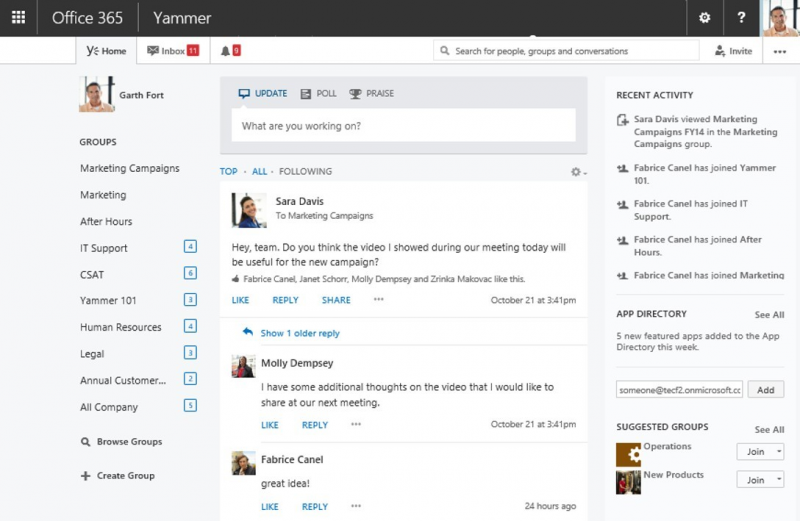
Integrating Yammer with Dynamics 365 strengthens internal communication and teamwork across your organization. It allows employees to start discussions, share updates, and collaborate on projects directly within the Dynamics 365 workspace without switching between platforms. This helps teams stay aligned, solve issues faster, and keep everyone informed about ongoing activities.
The integration connects smoothly through Microsoft 365, ensuring messages, posts, and documents are securely shared and accessible to authorized users only. It supports real-time collaboration and can be linked to multiple Dynamics 365 modules, such as Sales, Customer Service, and Project Management. As your organization grows, it scales easily to support more users and groups while keeping data secure within your Microsoft ecosystem.
Use Case: Foster internal communication and team collaboration.
LinkedIn Sales Navigator

Integrating LinkedIn Sales Navigator with Dynamics 365 helps sales teams build stronger relationships and close deals faster. The integration syncs prospect data, activities, and insights between both platforms. Users can access LinkedIn profiles, job updates, and mutual connections directly from Dynamics 365.
It also provides real-time lead recommendations and engagement alerts. Sales reps can focus on the most promising opportunities without switching between tools. They can send InMail messages, track interactions, and log communications automatically. The setup is flexible and scalable, fitting easily into existing sales processes.
This integration keeps data secure and ensures consistency across LinkedIn and Dynamics 365. It gives sales teams a unified, up-to-date view of every prospect and customer.
Use Case: Identify leads, view insights, and connect with prospects directly.
AttendanceBot
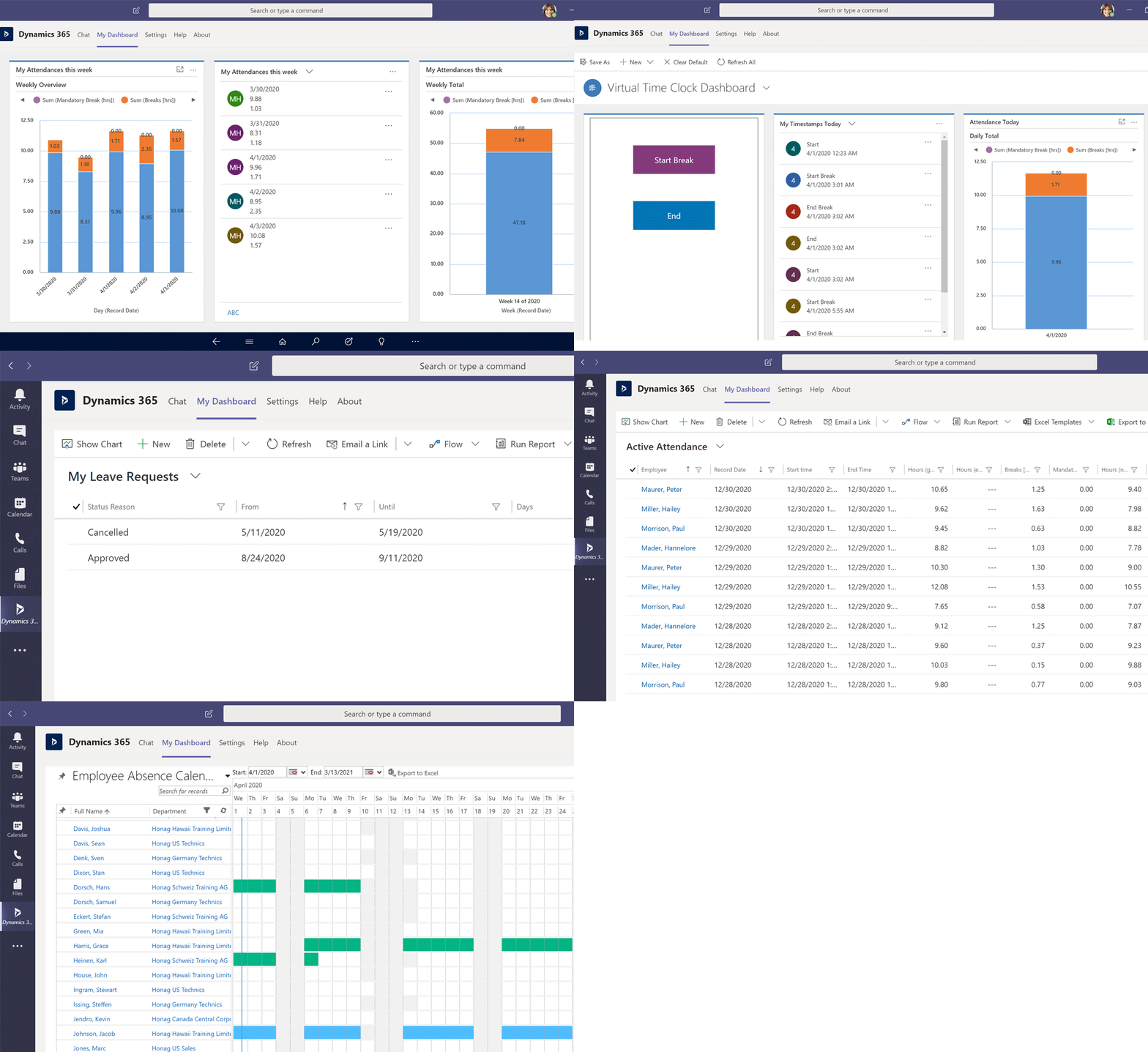
Integrating AttendanceBot with Dynamics 365 makes attendance and leave tracking simple and automatic. It connects through secure APIs or built-in connectors to sync real-time data about check-ins, time off, and work hours. HR teams can easily see accurate attendance records and track productivity without moving between different tools.
The setup helps managers approve leaves faster, follow company policies, and understand workforce trends more clearly. As your company grows, the integration can handle more users and departments while keeping all employee information safe and limited to authorized access.
Use Case: Track employee attendance and sync HR data seamlessly.
DocuSign
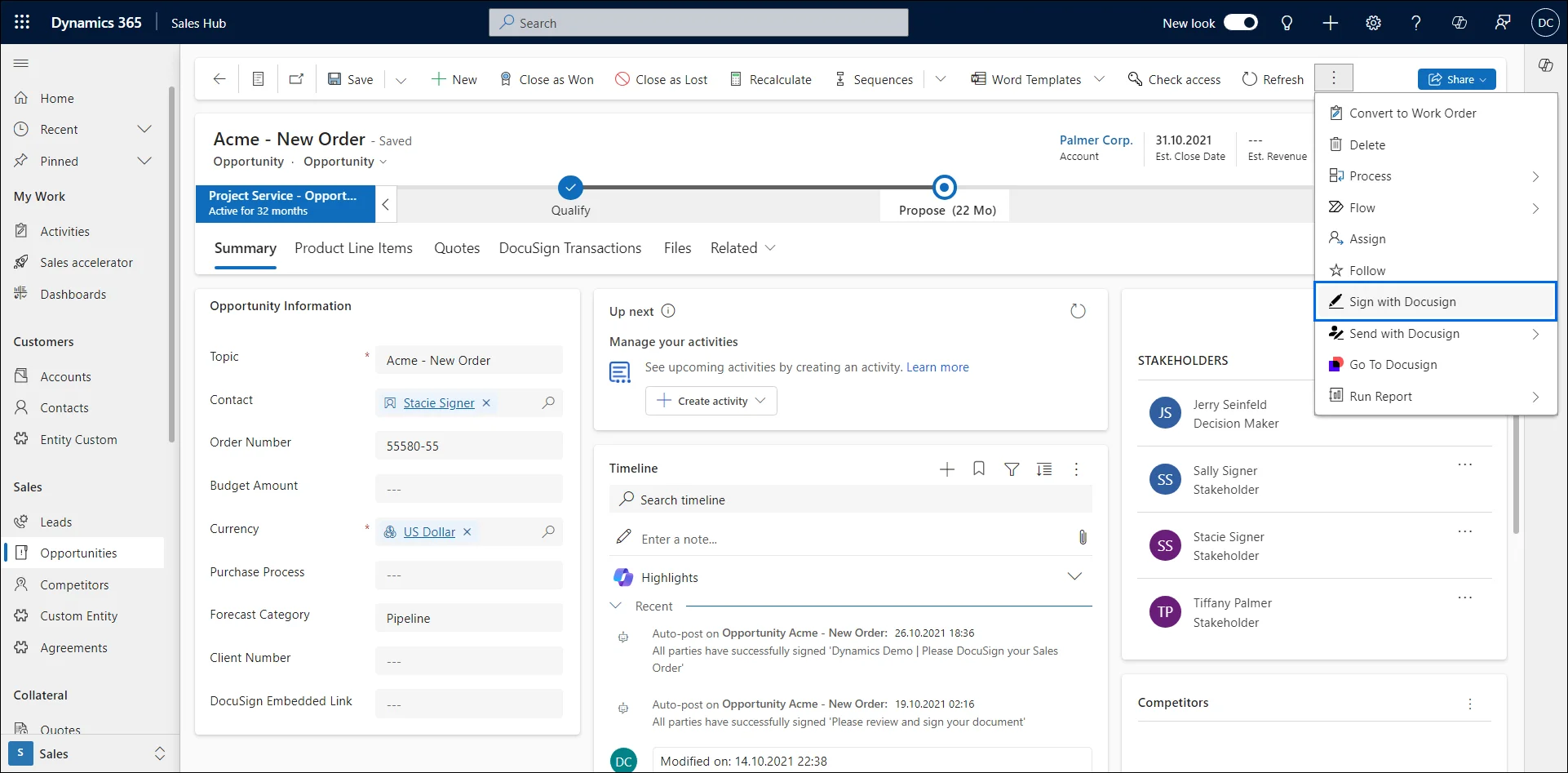
Integrating DocuSign with Dynamics 365 makes it simple to send, sign, and manage documents without leaving your CRM. Teams can prepare contracts, quotes, and agreements and have them signed digitally in just a few clicks. The procedure is totally automated from sending to tracking, resulting in less manual effort and less delays.
The integration connects easily through built-in connectors or APIs and works across modules like Sales, Customer Service, and Finance. Once documents are signed, they’re stored securely and automatically linked to the right records, keeping everything accurate and compliant. It’s flexible enough to grow with your business too, handling more documents as your needs increase while keeping your data safe and organized.
Use Case: Send and track digital signatures directly from Dynamics 365.
MeisterTask
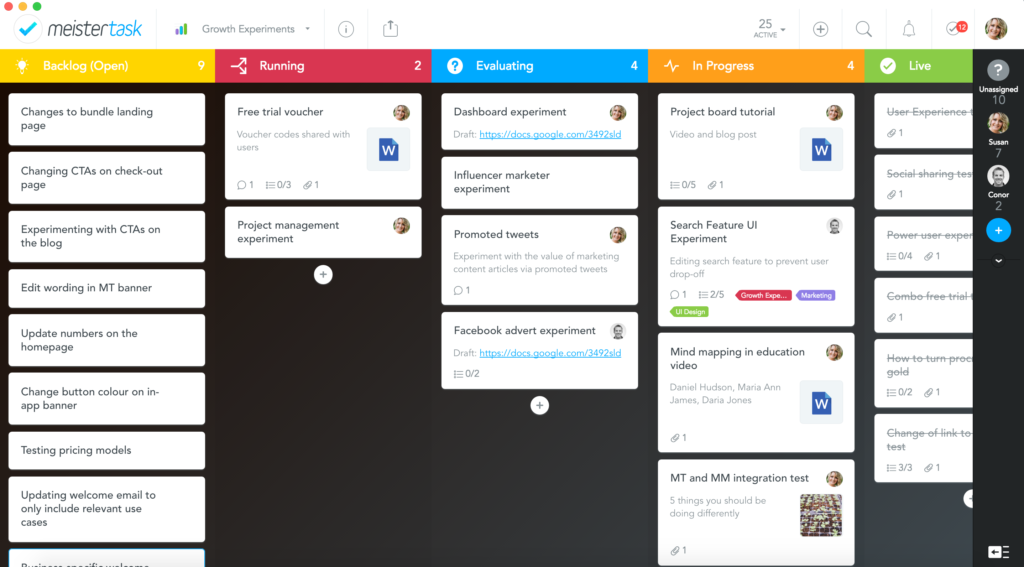
Integrating MeisterTask with Dynamics 365 helps teams manage projects more efficiently by keeping tasks and project details in one place. Users can create, assign, and track tasks directly from Dynamics 365 records, and any updates like as status changes and comments are automatically synced across both platforms.
It supports real-time notifications, so teams always know what’s happening without switching tools. You can connect multiple projects, customize workflows, and scale the setup as your business grows. Role-based access ensures data stays secure, while the integration keeps everyone aligned and productive throughout each stage of a project.
Use Case: Link task boards to Dynamics 365 for efficient project coordination.
Zapier
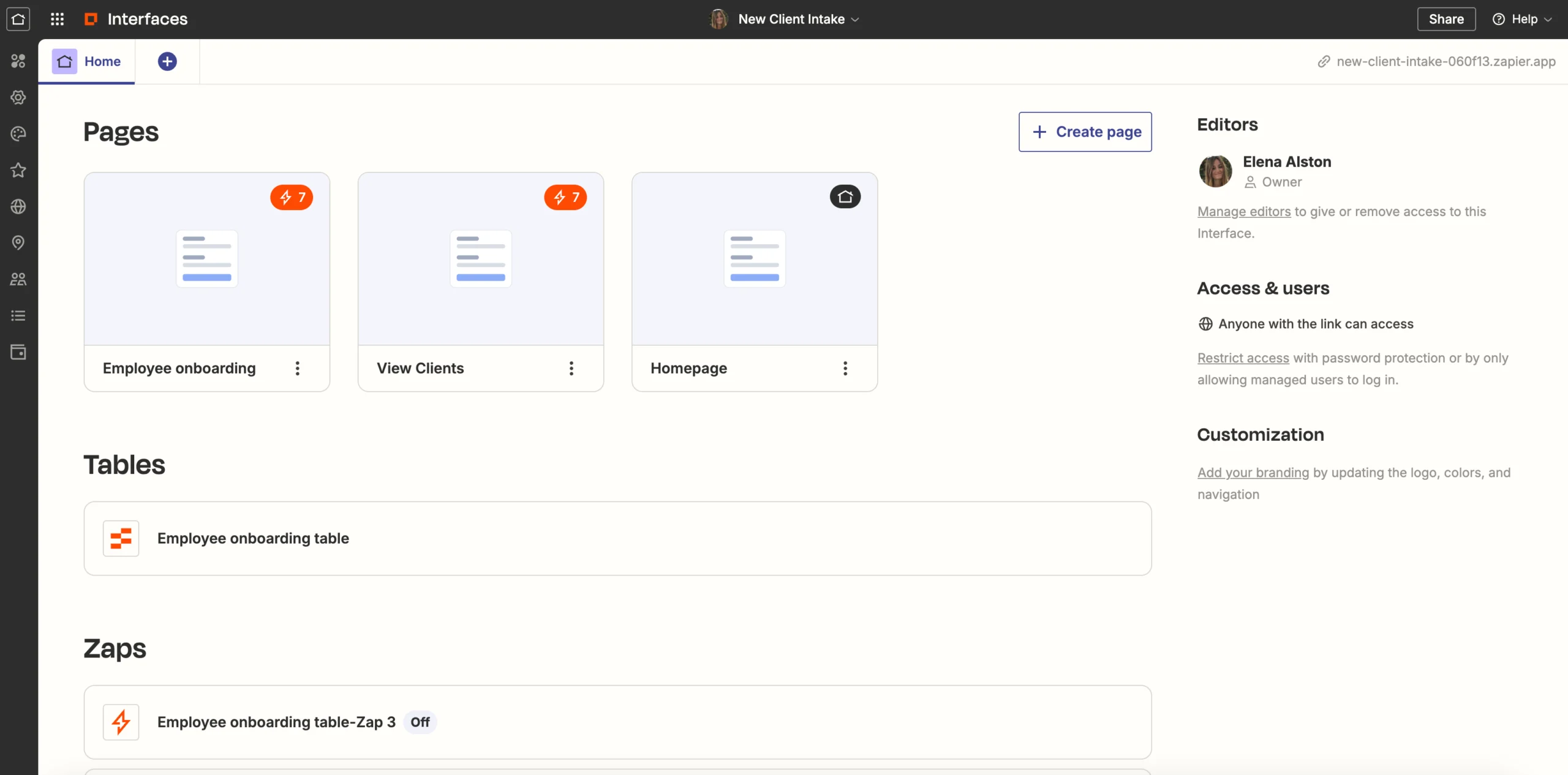
Zapier acts as a bridge between Dynamics 365 and thousands of other apps. It makes automating workflows simple, even without any coding. The integration securely connects through APIs and syncs data like contacts, leads, invoices, and tasks in real time across multiple Dynamics 365 modules.
Setting up integrations is straightforward and flexible. Teams can connect the apps they use most and adjust workflows as business needs change. It also scales easily, handling growing teams and larger amounts of data while keeping everything secure and organized. This integration helps businesses save time, reduce errors, and keep systems aligned without constantly switching between platforms.
Use Case: Connect Dynamics 365 with thousands of third-party apps easily.
Oracle
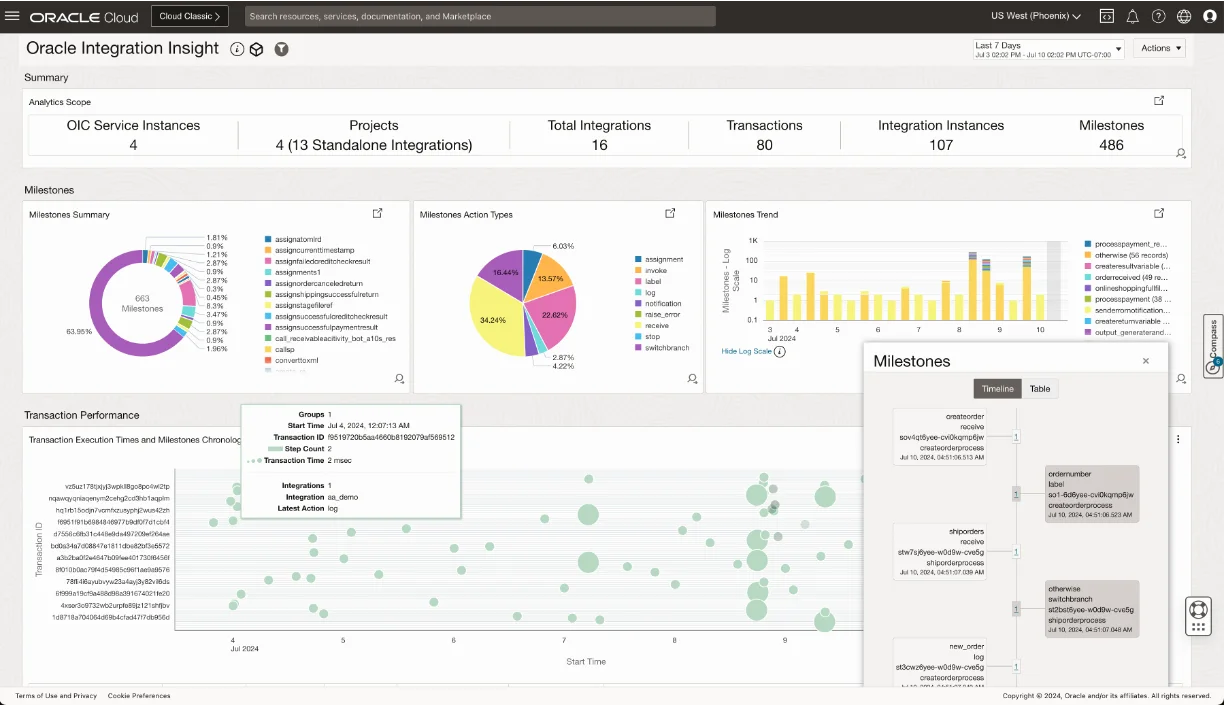
Oracle integrates seamlessly with Dynamics 365, bringing finance, sales, and inventory operations together in one place. It automatically syncs invoices, customer details, and orders in real time, cutting down on manual work and errors. The integration keeps data consistent across systems, making reporting more reliable and giving teams clear insights.
It scales easily as your business grows and can adapt to different workflows or departments. By combining automation with accurate, up-to-date information, this integration helps companies make smarter financial and operational decisions.
Use Case: Sync financial and customer data between Oracle ERP and Dynamics 365 to streamline accounting, sales tracking, and reporting all without complex setup.
Zoho
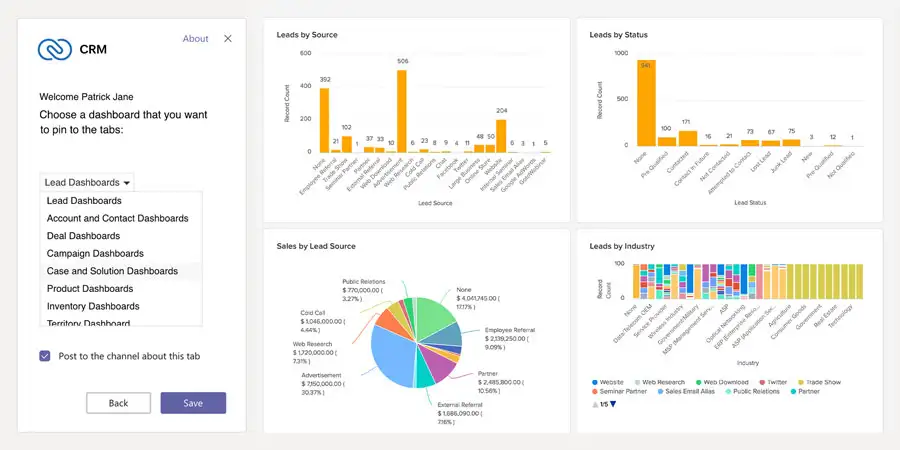
Integrating Zoho with Dynamics 365 makes it simple to connect sales, marketing, and customer data across both platforms. Leads, invoices, and contacts stay automatically updated, giving teams accurate and unified information at all times.
The integration works across multiple Dynamics 365 modules and can adjust as your business grows. It saves time, reduces errors, and improves collaboration between departments. By keeping all customer interactions in one place, teams get a complete view of clients and can make smarter, faster decisions.
Use Case: Automatically sync leads and invoices between Zoho CRM and Dynamics 365 to streamline customer management and reporting without extra effort.
Shopify
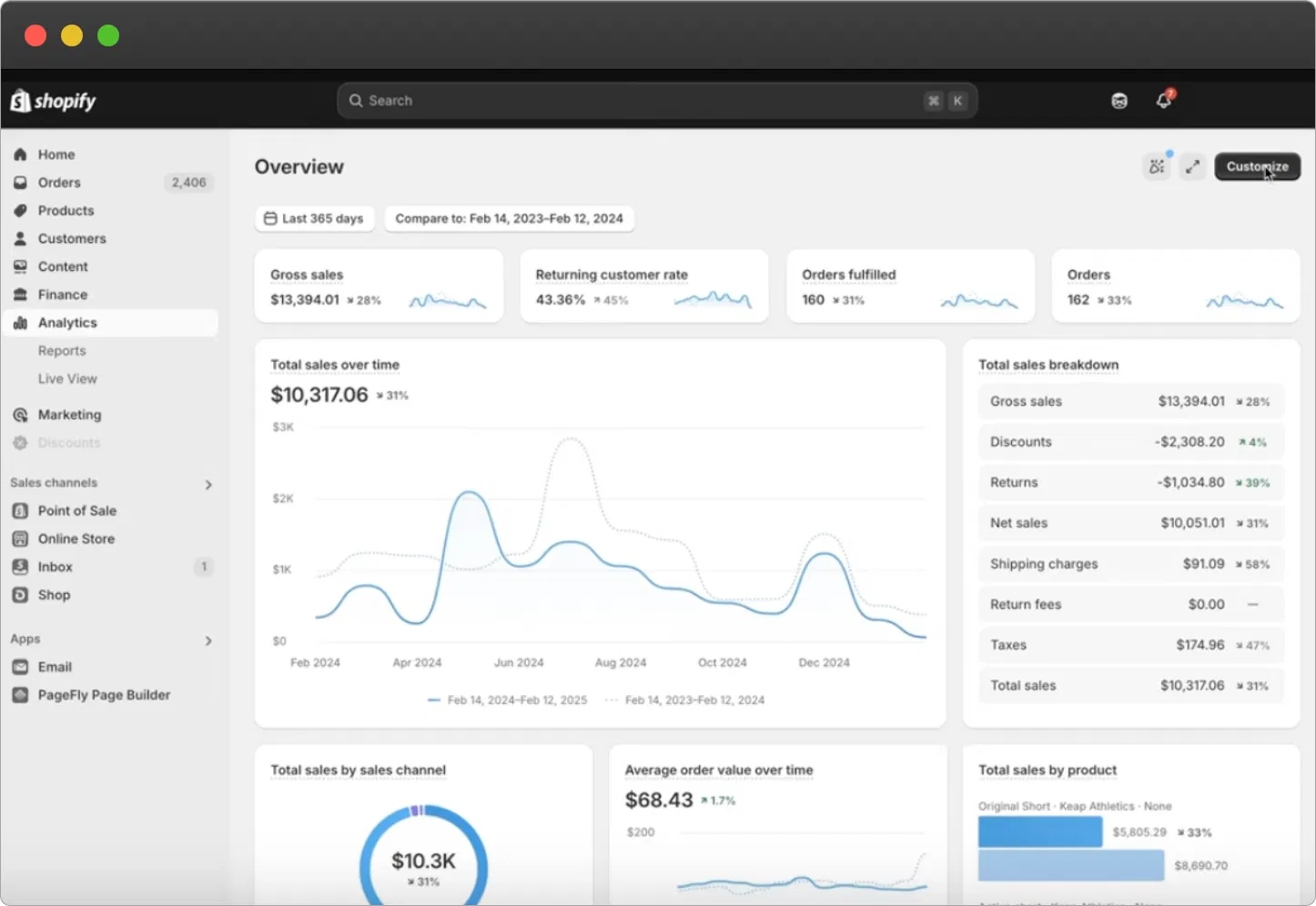
Integrating Shopify with Dynamics 365 helps businesses connect their online store directly to their CRM and ERP systems. Orders, customer information, and inventory are automatically synced in real time, so teams can manage sales and stock from one central place.
The integration is flexible and scales as your business grows, making it easier to add new products or handle higher order volumes. It also reduces manual updates, minimizes errors, and ensures smooth e-commerce operations, giving teams more time to focus on growing the business.
Use Case: Sync Shopify orders, products, and customer data with Dynamics 365 to keep sales, inventory, and reporting aligned without manual entry.
QuickBooks
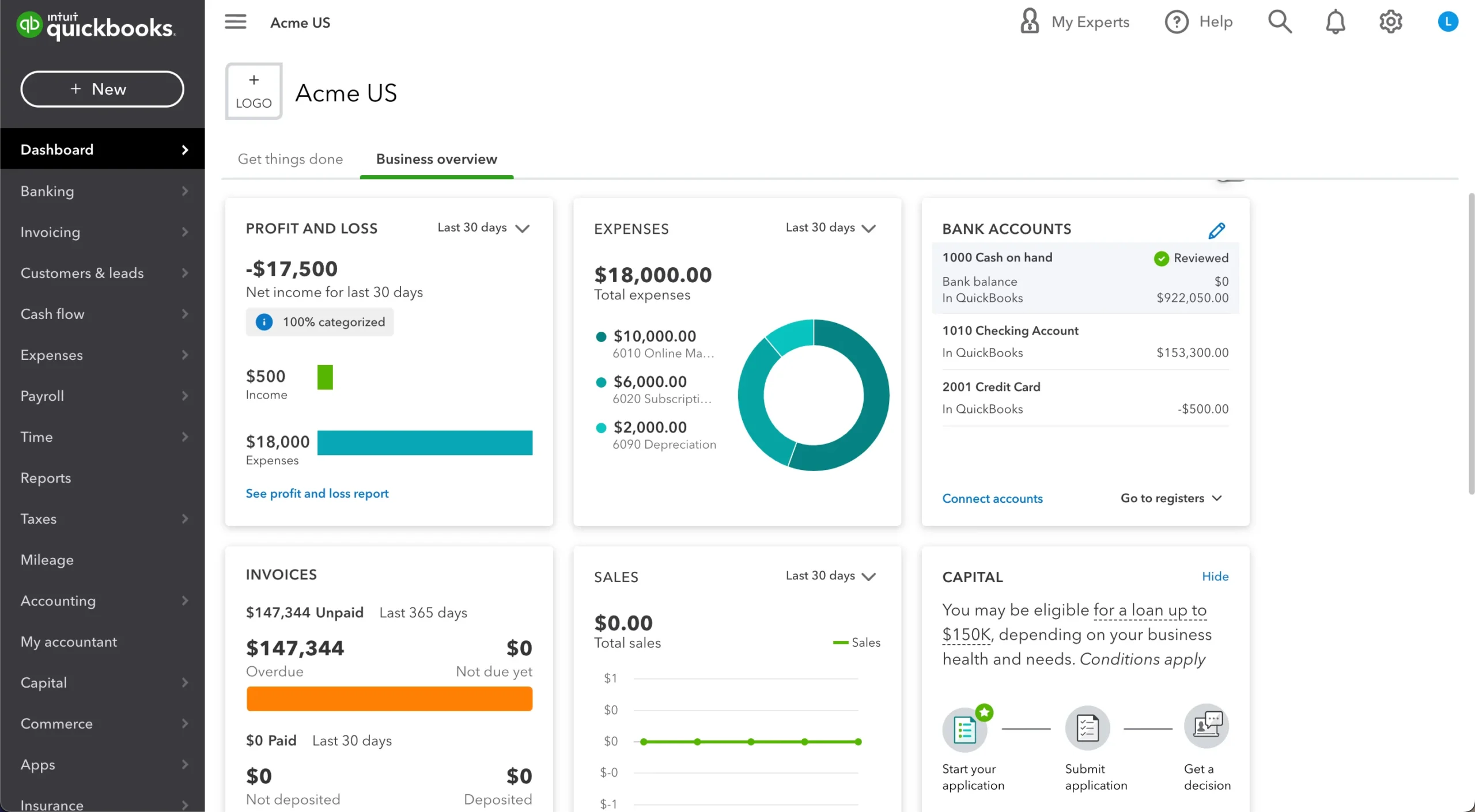
Integrating QuickBooks with Dynamics 365 keeps your financial and customer data in sync in real time. Invoices, payments, and balance records are updated automatically across both platforms, reducing manual work and errors. The integration works smoothly across multiple Dynamics 365 modules and scales as your business grows.
It also keeps sensitive financial data secure with built-in access controls, so teams can collaborate safely while staying aligned. By combining automation with accurate insights, this integration helps businesses streamline accounting and focus on growth.
Use Case: Automate accounting processes by syncing invoices and payments.
Case Study Example
Example
A mid-sized retail business integrated Dynamics 365 with Shopify and Mailchimp. Prior to the integration, they faced challenges with duplicate customer data and lifecycle times for marketing campaigns.
Solution: They utilized Power Automate and Zapier to synchronize customer profiles. After synchronization, they automated their marketing emails.
Outcome: The accuracy of data increased by 40% and the time it took to deliver a campaign was cut in half.
Common Misconceptions Related to Connecting Dynamics 365
Take Your Dynamics 365 Integration to the Next Level
Don’t let disconnected systems slow your business down. With the right integrations, you can streamline workflows, keep your data in sync, and make smarter, faster decisions. Our team will guide you through seamless setup, ensuring your Dynamics 365 works perfectly with the apps you rely on.
FAQs

You are ready when your teams are using separate, disconnected systems that require dual data entry and manual updates. Integration is the right choice when you can begin to identify delays, errors, and visibility gaps in your current workflows.
Start with the applications that directly touch customers or finances, such as CRM, accounting, or communication applications. Integrating the applications that touch customers or finances first will provide a solution that is useful quickly, as well as it will set a solid groundwork for additional connections in the future.
Always connect through authenticated APIs, use encrypted data communication, and stick with Microsoft-approved connectors. Limit access through role-based permissions so that only authorized users can view or sync sensitive data.
Start by checking the logs for your connectors and checking the sync schedule. The majority of issues are the result of expired credentials, changed field mappings, or paused workflows. A simple check of those items will solve the issue, and more than likely, you will not need to completely rebuild anything.
For sure! You can set up reliable integrations by leveraging Microsoft's low-code development environment using Power Automate and its pre-built integrations and connectors. Actioning these is perfect for smaller teams and non-developers.
Integrations should be treated as living systems. You should be reviewing them every few months, or when you have done any major software update/cycles, to make sure performance, accuracy, and compatibility have remained.