How to Recall an Email in Outlook: A Step-by-Step Guide
Accidentally sent the wrong message? Learn How to Recall an Email in Outlook with this guide to undo mistakes fast and stay professional every time.
Contact Us
Introduction: Why Email Recall Matters
Everyone has experienced that sinking feeling after sending an email too soon; maybe you forgot an attachment, made a typo, or sent it to the wrong person. In professional settings, even a small mistake can affect credibility.
Microsoft Outlook’s Recall Email feature can help recover from these moments by allowing you to delete or replace a message after it’s sent. It’s a helpful safeguard that can prevent confusion or embarrassment.
The recall function depends on certain technical conditions, such as both sender and receiver using Microsoft Exchange or Microsoft 365 within the same organization.
What Is the “Recall Email” Feature in Outlook?
The Recall Email feature in Outlook allows you to delete a sent message or replace it with an updated version, provided it hasn’t been read yet.
This feature is available on:
However, it comes with limits. Recall only works if both sender and recipient are on Microsoft Exchange or Microsoft 365 accounts within the same network. It does not work for emails sent to external services such as Gmail or Yahoo.
How to Recall an Email in Outlook (Desktop App)
If you sent an email by mistake, follow these simple steps to recall it using the Outlook Desktop App:
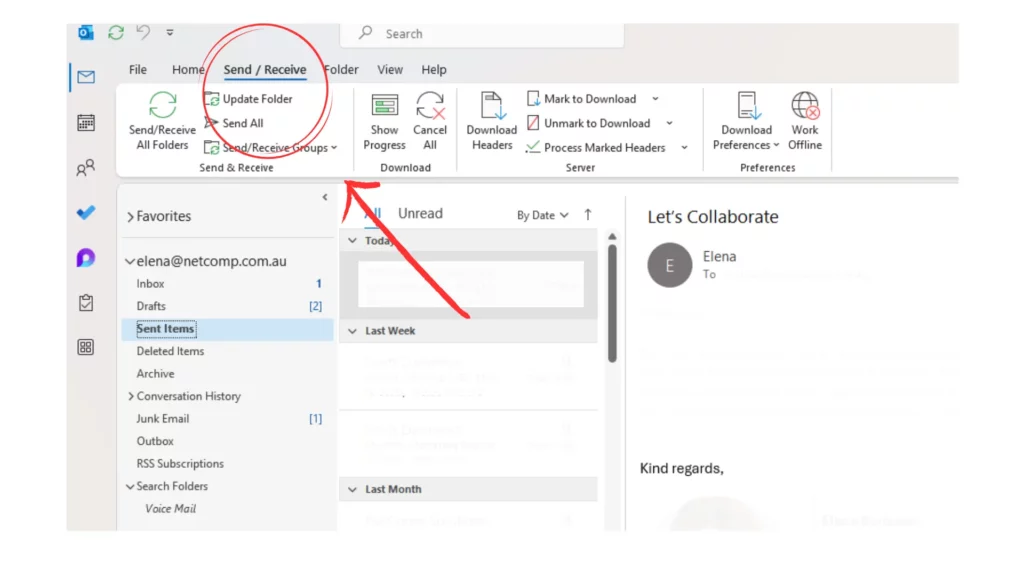
How to Recall and Replace a Deleted Email With a New Message
If you need to correct a message, you can use Outlook’s replace function after a recall attempt.
This option is useful when:
Steps to replace your message:
Pro Tip: Keep your replacement email short and clear to maintain professionalism.
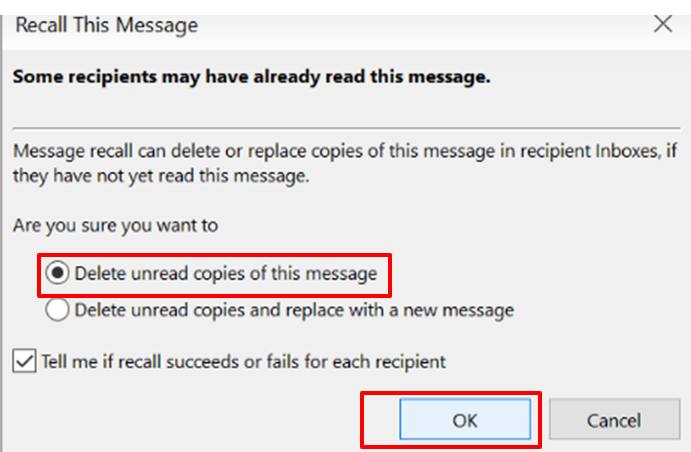
Conditions for a Successful Recall
The success of your recall depends on several conditions.
The recall will only work if:
The recall will fail if:
Microsoft reports that recall success rates are highest within Exchange-based organizations where recipients remain online during message delivery.
How to Use the Undo Send Option on Mac or Outlook.com
The Recall feature isn’t supported on Outlook.com or Outlook for Mac, but you can use Undo Send instead. This feature gives you a few seconds to stop an email before it leaves your outbox.
On Outlook.com (web version):
On Mac (Microsoft 365):
Undo Send vs. Recall:

How to Check on the Status of Your Recalled Message
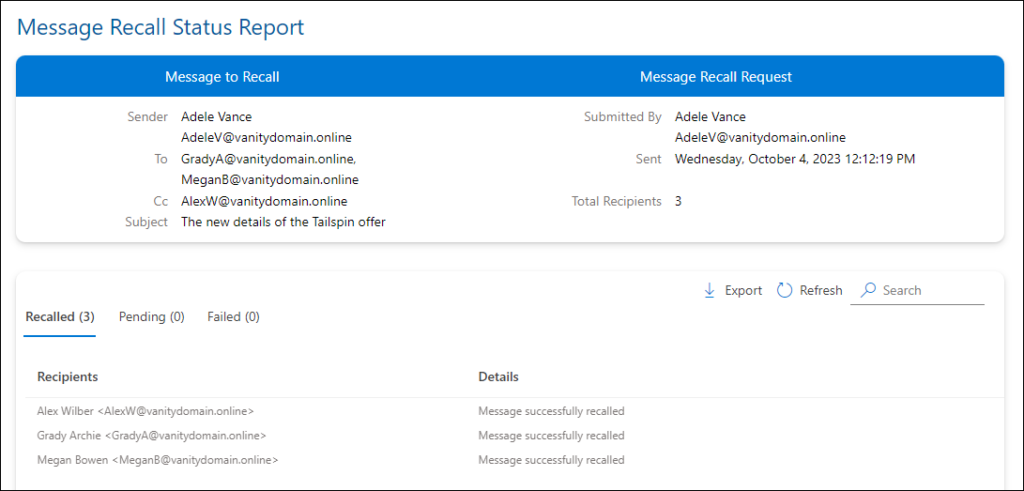
After initiating a recall, you can monitor whether it succeeded or failed.
How to track recall status:
Status meanings:
If the recall doesn’t work, you can still correct the situation with a quick follow-up.
What to Do if Email Recall Fails
When recall isn’t possible, you can minimize the impact by acting quickly:
Best Practices to Avoid Mistakes Before Sending Emails
Avoiding the need to recall an email starts with careful review. Try these habits:
Using Email Delay Rules in Outlook
Adding a delay rule helps prevent accidental sending by holding emails for a short time before delivery.
To create a delay rule:
This small buffer acts as a safety net, allowing you to review emails one last time before they’re sent.
Conclusion: Send Smarter, Not Faster
Recalling an email in Outlook can save you from potential embarrassment or errors, but it’s not guaranteed to work every time. The best strategy is to use tools like Delay Delivery, review carefully, and send messages mindfully.
At Tech Implement, we help organizations make the most of Microsoft Outlook and 365 tools, empowering teams to communicate smarter, automate tasks, and avoid preventable email mistakes.
FAQs About Recalling Emails in Outlook

No. Once the recipient has opened the email, the recall attempt will fail. Outlook cannot remove or replace messages that have already been read. This is why timing is crucial; the earlier you attempt a recall, the higher the chances of success.
Outlook can notify you if your recall succeeds or fails, provided you selected the option “Tell me if recall succeeds or fails for each recipient.” If you don’t receive a notification, it may mean the recipient has already read the email; their mailbox is offline, or rules prevent the notification from being sent.
No. The recall feature is only available on the desktop version of Outlook (Windows) and in Exchange environments. Mobile versions of Outlook, including Android, iOS, and Outlook.com web, do not support message recall. For mobile users, the Undo Send feature can be used as a temporary solution if enabled.
No. Outlook’s recall function only works for recipients within the same Microsoft Exchange or Microsoft 365 environment. Emails sent to external domains cannot be retrieved or replaced once delivered. If you need to correct a message to an external recipient, the best approach is to send a polite follow-up email with the correct information.
No. Outlook does not allow recalling attachments independently. To correct missing or incorrect attachments, you must recall the entire email (if possible) and resend a corrected version, or send a follow-up email with the proper files attached.
Several conditions impact recall success:
Yes, but recall success is evaluated individually for each recipient. Some may read the email before the recall reaches their mailbox, while others may still have it unread. Outlook provides separate success/failure notifications for each recipient if the tracking option is enabled.